
Moving into a new apartment can be exciting, but figuring out how to get internet service might feel a little tricky at first. It’s a common task for many people, and the good news is, it doesn’t have to be hard. We’ll walk you through each step, making sure you know exactly what to do.
Get ready to connect your new place without any fuss!
Key Takeaways
- You’ll learn how to pick the right internet plan for your needs.
- We’ll explain how to check what internet providers are available in your new area.
- You’ll find out how to set up an installation appointment or get self-setup equipment.
- We’ll cover common questions about internet service for new apartments.
- You’ll feel confident about getting online in your new home.
Choosing Your Internet Speed
When you’re setting up internet for the first time in a new place, figuring out how much speed you need can seem like a big puzzle. Too little speed and your streaming might buffer, but too much can cost you extra money. This part is all about making sure you get just the right amount of internet power for what you’ll be doing.
We’ll break down what those speeds actually mean so you can pick wisely.
What Do Speeds Mean?
Internet speed is measured in megabits per second (Mbps). This tells you how much data can be sent or received every second. Think of it like a pipe carrying water; a wider pipe (higher Mbps) lets more water (data) flow through faster.
Download speed is how fast you get information from the internet to your devices. This matters a lot for things like watching videos, loading websites, and downloading files. Upload speed is how fast you send information from your devices to the internet.
This is important for video calls, uploading photos, and playing online games.
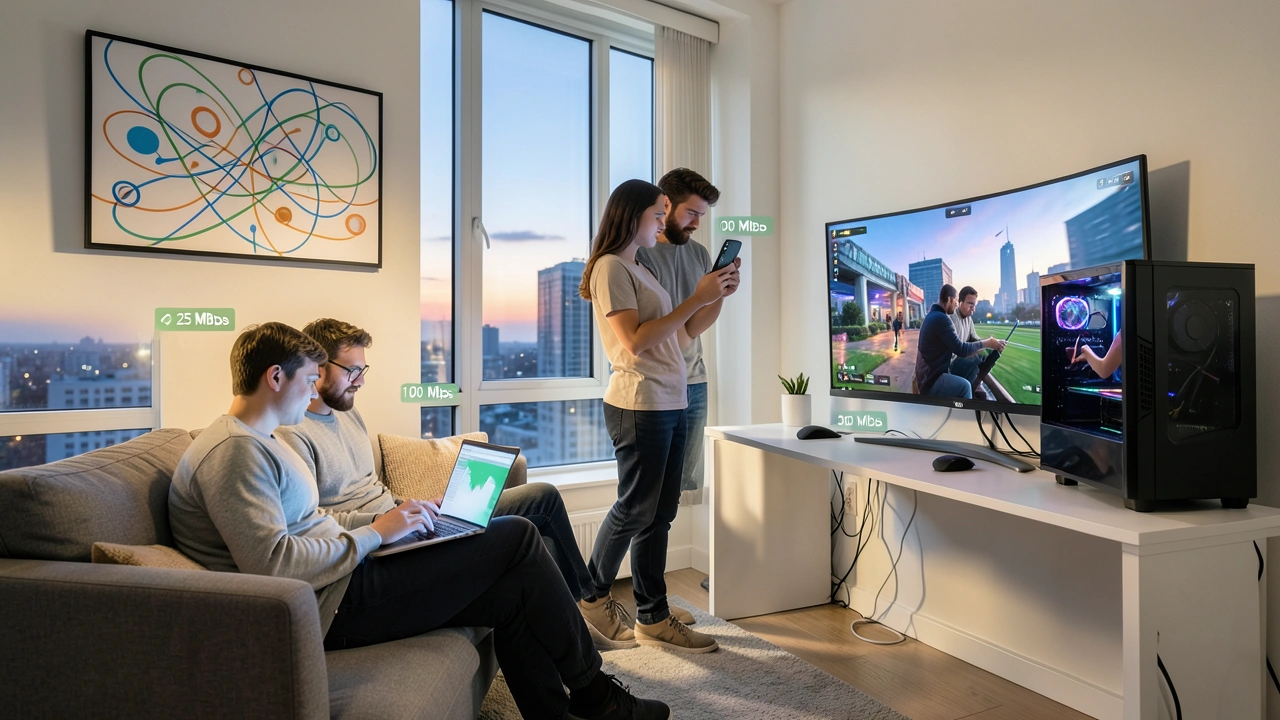
For basic web browsing and checking email, speeds around 25-50 Mbps are usually fine. If you stream a lot of movies in high definition or have multiple people using the internet at once, you’ll want speeds closer to 100-200 Mbps. For serious gamers or those who download very large files, 300 Mbps or more might be best.
- Basic Usage (25-50 Mbps): Good for checking email, social media, and light web browsing.
- Moderate Usage (100-200 Mbps): Ideal for streaming HD video, multiple users, and online gaming.
- Heavy Usage (300+ Mbps): Best for downloading large files quickly, 4K streaming, and demanding online activities.
Many providers offer different speed tiers. It’s important to match your internet plan to your household’s online habits. If you’re not sure, it’s often better to start with a slightly higher speed and see if you can downgrade later if you find you don’t need it.
How Many Devices Will Connect?
Think about all the gadgets you’ll have connected to your Wi-Fi. This includes smartphones, laptops, tablets, smart TVs, game consoles, and even smart home devices like speakers or thermostats. Each device uses some of your internet speed.
If you have many devices connected simultaneously, especially if they are all doing something that uses a lot of data (like streaming or gaming), you’ll need a faster plan. A single person might be fine with a lower speed, but a family of four with several streaming devices might struggle.
Consider a scenario: A family of four has two adults working from home on video calls, a teenager streaming videos, and a younger child playing an online game. All these activities happening at the same time require a significant amount of bandwidth. A plan with 50 Mbps would likely lead to constant buffering and slow performance for everyone.
Speed Test Your Current Connection
If you’re moving from another place, try running a speed test on your current internet. This gives you a baseline. Websites like Speedtest.net or Fast.com can show you your current download and upload speeds.
This can help you understand what you’re used to and what you might need to maintain your current online experience.
Finding Internet Providers in Your New Area
Once you know what kind of speed you need, the next step is to see who actually offers internet where you’re moving. This is where things can sometimes get a little complicated, but we’ll make it simple. Different companies cover different neighborhoods, and some might even offer different types of internet connections.
You don’t want to sign up for a plan only to find out it won’t reach your new home. This section is all about figuring out your options and confirming what’s available to you.
Checking Provider Availability
The easiest way to find out which internet providers serve your new address is to visit their websites. Most major internet companies have a tool where you can enter your new zip code or full address to see their available services.
Common providers include:
- Comcast (Xfinity)
- Spectrum
- AT&T
- Verizon
- Google Fiber (in select areas)
- T-Mobile Home Internet
- Verizon 5G Home Internet
Some of these companies offer cable internet, others offer fiber optic internet, and some use DSL or even fixed wireless. Each has its own pros and cons.
Types of Internet Connections
Cable Internet: This uses the same coaxial cables that deliver cable TV. It’s widely available and offers good speeds, often between 50 Mbps and 1000 Mbps (1 Gigabit). Download speeds are usually faster than upload speeds.
Fiber Optic Internet: This is the fastest type of internet, using light signals through glass or plastic fibers. It offers symmetrical speeds, meaning download and upload speeds are the same, often reaching 1 Gbps or even higher. Fiber is becoming more common but isn’t available everywhere yet.
DSL (Digital Subscriber Line): This uses existing phone lines to provide internet. It’s generally slower than cable or fiber, with speeds typically ranging from 5 Mbps to 100 Mbps. It’s a good option if cable or fiber isn’t available, but performance can vary depending on distance from the phone company’s central office.
Fixed Wireless Internet: This uses radio signals from a tower to a receiver on your home. It’s often used in rural areas where wired options are limited. Speeds can vary widely, but it’s a good alternative when other options aren’t available.
5G Home Internet: This is a newer option from mobile carriers like T-Mobile and Verizon. It uses their 5G mobile network to provide home internet. Speeds can be competitive with cable, and installation is often very simple, sometimes just plugging in a router.
Here’s a quick comparison:
| Internet Type | Typical Speeds (Mbps) | Availability | Pros | Cons |
|---|---|---|---|---|
| Cable | 50-1000 (Download) | Widespread | Good speeds, widely available | Uploads slower than downloads, can be affected by neighborhood usage |
| Fiber Optic | 100-1000+ (Symmetrical) | Growing, but limited | Fastest speeds, symmetrical, reliable | Not available everywhere, sometimes more expensive |
| DSL | 5-100 (Download) | Where phone lines exist | Often cheapest, widely available if phone lines are present | Slowest speeds, performance degrades with distance |
| 5G Home Internet | 50-200+ (Varies) | Select areas, growing | Easy setup, often competitive pricing, no long-term contracts | Speed can vary, relies on mobile network strength, data caps possible |
Using Online Comparison Tools
Besides checking individual provider websites, you can use comparison websites. These sites allow you to enter your address once and see a list of all providers available to you, along with their plans and prices. This can save you a lot of time.
Some popular comparison sites include:
- HighSpeedInternet.com
- BroadbandNow.com
- Allconnect.com
These tools are great for seeing your options at a glance. They often highlight deals and promotions, too.
What If Options Are Limited?
If you find that only one or two providers offer service at your new address, don’t get discouraged. Even with limited choices, you can usually find a plan that fits your needs and budget. Sometimes, fewer choices can actually make the decision easier.
If you’re in a rural area or a location with very limited options, check for smaller, local internet providers. They might offer a service that major companies don’t. Also, consider fixed wireless or satellite options, although satellite can have higher latency and weather-related issues.

Setting Up Your Internet Service
Now that you know what speed you need and who can provide it, it’s time to get it set up. This is the part where you actually get connected. There are usually two main ways this happens: an in-home installation by a technician, or a self-setup where they send you equipment.
The process is designed to be as smooth as possible, so you can start enjoying your new internet connection quickly.
Scheduling an Installation
For many services, especially cable and fiber, a technician will need to come to your apartment to set up the connection. This usually involves running a line to your unit and setting up a modem or router.
When you sign up online or over the phone, the provider will offer available appointment dates and times. Try to schedule this for a day when you’ll be home and can give the technician access to where the service will enter your apartment (like an exterior wall or utility closet).
Sample Scenario: Scheduling a Cable Installation
- You visit the Xfinity website and enter your new address.
- You select a plan offering 300 Mbps download speed.
- The website shows available installation slots: Tomorrow between 1 PM-3 PM, or two days from now between 10 AM-12 PM.
- You choose the 10 AM-12 PM slot two days from now.
- You receive a confirmation email with your appointment details and what to expect.
Some newer services, like 5G home internet, might not require a technician visit at all. They often send you a device that you plug in yourself.
Self-Setup Options
Some internet providers, particularly for DSL or fixed wireless, or newer 5G home internet, offer a “self-install” option. In this case, the provider will mail you a kit containing a modem, router (or a combined modem/router unit), and easy-to-follow instructions.
The kit will guide you through plugging in the equipment, connecting it to the wall outlet (if needed), and activating your service online or by phone. This can be a quicker way to get online, as you don’t have to wait for a technician appointment.
Tips for Self-Setup:
- Read the instructions carefully: Even simple instructions are important to follow precisely.
- Have your account information ready: You’ll likely need your account number or activation code.
- Ensure a good location for the modem/router: Place it in a central area for the best Wi-Fi signal throughout your apartment.
- Check all connections: Make sure cables are securely plugged in.
For 5G Home Internet, for example, you simply plug the gateway device into a power outlet near a window. The device then connects to the 5G network, and you can set up your Wi-Fi network using a mobile app.
What Equipment You’ll Need
Most internet providers will supply you with a modem, which connects your home to their network. They might also provide a router, which creates your Wi-Fi network, allowing multiple devices to connect wirelessly. Sometimes, these are combined into a single “gateway” device.
You usually have a choice: use the equipment provided by the ISP (Internet Service Provider) for a monthly rental fee, or buy your own compatible modem and router.
Renting Equipment:
- Convenience: The ISP ensures it’s compatible and will replace it if it breaks.
- Cost: Monthly rental fees can add up over time, costing $10-$20 per month or more.
Buying Your Own Equipment:
- Long-term Savings: After the initial purchase, you save on monthly rental fees.
- Compatibility: Make sure the equipment you buy is approved by your ISP. Check their website for a list of compatible models.
- Performance: You can often choose a higher-quality router for better Wi-Fi coverage.
If you’re on a budget, buying your own modem and router can save you money over the life of your service. However, renting is simpler if you prefer not to deal with compatibility checks.
Understanding Your Bill
Once your service is active, you’ll receive your first bill. It’s important to understand what you’re being charged for. Bills typically include the monthly service fee, equipment rental fees (if applicable), taxes, and sometimes regulatory fees.
Some providers may also charge one-time setup or installation fees. These are usually listed clearly when you sign up. Be aware of any contract terms, such as minimum service periods or early termination fees.
A recent survey found that many people are surprised by their first internet bill due to hidden fees or promotions ending. For example, a promotional price of $50/month for 12 months might jump to $70/month after the first year. Always ask about pricing after promotional periods end.
Common Challenges and Solutions for New Apartments
Moving to a new apartment can bring unique situations when it comes to internet service. Sometimes, the building itself has specific rules, or the wiring might be older. But don’t worry, most of these issues have straightforward solutions that will get you connected.
We’ll cover some of the most common hurdles people face and how to overcome them so you can get online without unnecessary stress.
Building Restrictions or Rules
Some apartment buildings have exclusive deals with certain internet providers. This means they might only allow one or two specific companies to offer service within the building. In other cases, your landlord or building management might have rules about where technicians can work or where equipment can be installed.
Solution: Always check with your landlord or building management before signing up for internet service. Ask them if there are any preferred providers or any restrictions on installations. They can provide you with important information that will save you trouble later.
A case study from Chicago highlighted an issue where a tenant signed up for fiber internet, only to find out the building’s HOA (Homeowners Association) had an exclusive contract with a cable provider, preventing fiber installation. The tenant had to cancel their order and choose the restricted provider.
Low or No Signal Strength
Sometimes, even after setup, your Wi-Fi signal might be weak in certain parts of your apartment. This can be due to the apartment’s layout, the building materials (like concrete walls), or the placement of the router.
Solutions:
- Router Placement: Put your router in a central, open location, away from walls or large metal objects. Avoid placing it in corners or cabinets.
- Wi-Fi Extenders/Mesh Systems: If your apartment is large or has many dead spots, a Wi-Fi extender or a mesh Wi-Fi system can boost your signal and cover more area.
- Check Router Antennas: If your router has external antennas, try adjusting them to different angles.
- Contact Your ISP: If the signal is weak right near the modem, there might be an issue with the service line, and your provider may need to investigate.
Consider a mesh Wi-Fi system for larger apartments. These systems use multiple units placed around your home to create a seamless Wi-Fi network, ensuring strong coverage everywhere. This is often more effective than a single router for larger or oddly shaped spaces.
Contract Lengths and Early Termination Fees
Many internet providers offer lower prices for signing a one-year or two-year contract. While this can save you money initially, it can be a problem if you move before the contract ends, as you might have to pay an early termination fee (ETF).
Solution: Look for providers that offer month-to-month plans or have flexible contracts. Companies like T-Mobile Home Internet or some smaller providers often have no-contract options. If you do sign a contract, be sure you understand the ETF amount and when it applies.
If you anticipate moving within a year, opting for a no-contract plan is often the safest bet. The monthly cost might be slightly higher, but it avoids potentially hefty fees if you have to break the agreement.
Understanding Your Service Agreement
Before you sign up, take a moment to read through the service agreement. It contains important details about pricing, contract terms, data caps (limits on how much data you can use each month), and privacy policies.
Solution: Pay close attention to sections about:
- Promotional pricing: When does the introductory offer end? What will the price be after that?
- Data caps: Are there limits on how much data you can use? What happens if you go over? Many plans now offer unlimited data, but it’s good to confirm.
- Equipment fees: Are you renting equipment, and what is the monthly cost?
- Installation fees: Are there any one-time charges to get service started?
A common statistic is that about 30% of internet users are unaware of their data caps, leading to surprise overage charges. Always confirm if your plan has a data limit.
What to Do If Installation is Delayed
Sometimes, despite best efforts, installation appointments can be delayed or rescheduled. This can happen due to technician availability, unforeseen issues at the building, or even weather.
Solution: Keep a record of your appointment date and time. If you don’t receive a confirmation or if your appointment is changed, contact the provider immediately. Politely explain your situation and ask for the soonest possible alternative appointment.
If delays are significant, ask if there are any service credits available for the inconvenience.
Frequently Asked Questions
Question: How long does it usually take to get internet service set up?
Answer: It typically takes anywhere from a few days to two weeks from when you sign up to when your service is active. This depends on whether you need a technician appointment or if you’re doing a self-setup. Self-setups are usually faster, sometimes active the same day or the next day.
Question: Can I use my own router instead of renting one?
Answer: Yes, in most cases, you can buy your own compatible modem and router. You’ll need to check with your internet provider to make sure the equipment you buy is on their approved list so it will work with their network.
Question: What if my new apartment doesn’t have a cable or phone jack where I want my modem?
Answer: For cable internet, the technician will typically install a new outlet if needed. For DSL, you’ll need a phone jack. If you’re using a wireless option like 5G home internet, you might just need a power outlet and can place the device near a window.
Question: How do I know if I need a faster internet speed?
Answer: Consider how many devices you’ll have connected and what you’ll use the internet for. If you stream a lot of high-definition video, play online games, or have many people in your household using the internet at once, you’ll likely need a faster plan than someone who just checks email and browses websites.
Question: Are there any internet plans specifically for new apartment residents?
Answer: While there aren’t always special plans just for new residents, many providers offer introductory deals or promotions for new customers. It’s always a good idea to ask about any current offers when you sign up for service in your new place.

Wrap Up
Getting internet in your new apartment is straightforward when you break it down. You’ve learned to pick the right speed, find available providers, and schedule setup. Follow these simple steps, and you’ll be connected in no time.
Enjoy your new home, online!